PINNED

Welcome aboard 🎉
SmartCV • 6/6/2025
Thank you for joining SmartCV! We're excited to have you on board.
- Start building your professional resume with our intuitive tools.
- Stay tuned for new features and updates!
- Email me for collaboration, feedback, or any inquiries: nqduy.working@gmail.com
Understanding the Section Bar
SmartCV • 6/6/2025
What does the section bar look like?
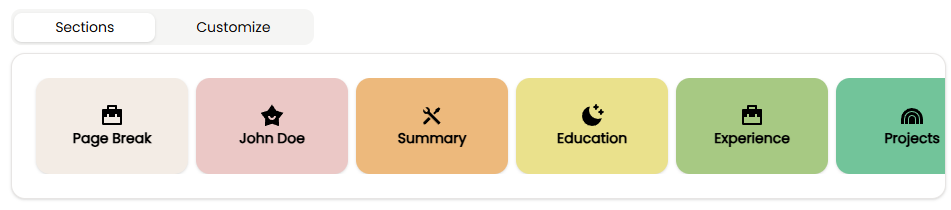 This is the section bar in SmartCV. Hover over each icon to preview the section style.
You can hover over each section icon to see a quick preview of how it will look in your resume.
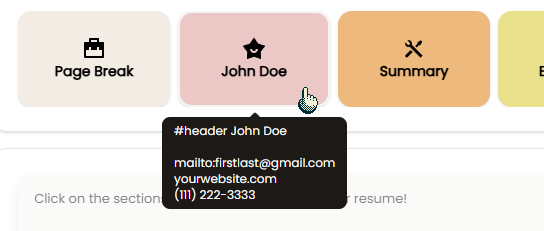
- #section1: A main section with a large title, perfect for Experience, Projects, or Activities.
- #section2: A smaller section, great for Education, Skills, or Honors.
- #title: The main heading for each entry (e.g., job title, degree).
- #subtitle: A secondary heading (e.g., company, university).
- #date: Shown to the right, for timelines or durations.
- #description: Additional context (e.g., location, link).
- Bullet points (-): Use these to list your achievements or responsibilities clearly.
Section Format Types
The AI automatically detects which format to use based on section type:
- Structured Sections (Experience, Education, Projects, Activities, Honors, Awards, Certifications): Use #title, #subtitle, #date, #description markers.
- Simple Sections (Skills, Interests, Hobbies, Languages, Summary, Objective, About, Strengths, Tools, Technologies): Plain text or comma-separated lists without markers.
You can add or use any section once it is implemented and available in the section bar.
What is Page Break?
The Page Break section lets you split your resume into multiple pages for better printing and organization.
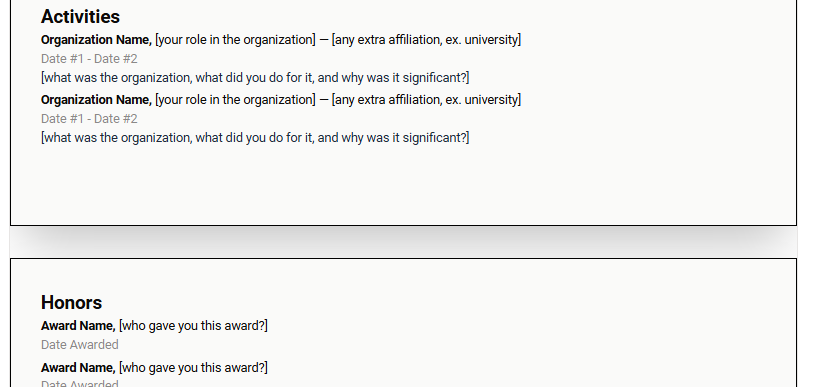 Scroll Down to See the Next Page